Bring your own audio
Import MP3, M4A, WAV, and other supported audio files from your iPhone. Keep multiple sounds in your library.
CarCue · iPhone + Apple Shortcuts
Give every drive a familiar welcome. Choose an audio file, set your volume, and let CarCue play it when CarPlay connects.
For iPhone with iOS 17 or later. One-time setup in Apple Shortcuts required.
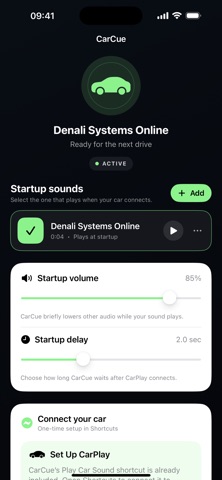
Make it yours
Import MP3, M4A, WAV, and other supported audio files from your iPhone. Keep multiple sounds in your library.
Listen before you choose. Select one active startup sound and switch it whenever you feel like something different.
Adjust your startup sound’s playback level. CarCue briefly lowers other audio while your sound plays.
One-time setup
First, add an audio file in CarCue and select it as your startup sound. Then connect it to your car with Apple Shortcuts.
CarCue runs on your iPhone, rather than on the CarPlay dashboard. Your car’s connection routes the sound to its speakers.
Inside CarCue
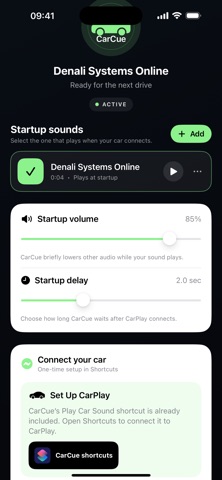
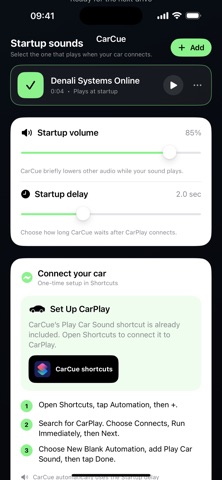
Common questions
CarCue runs on an iPhone with iOS 17 or later. To play a sound when CarPlay connects, create a one-time personal automation in Apple Shortcuts.
CarCue runs on your iPhone. Apple Shortcuts triggers the selected sound when CarPlay connects; CarCue is not a dashboard CarPlay app.
Import MP3, M4A, WAV, and other audio formats supported by your iPhone. Preview your files in CarCue, then choose the sound you want to play.
The recommended wait gives CarPlay time to finish connecting before the Play Car Sound action runs. Your iPhone must be connected to your car for audio to play through its speakers.
Get help with CarCue, audio files, or Shortcuts setup.